Friday, March 20, 2026

តើបច្ចេកវិទ្យា TRILL និង SPB ជួយអ្វីខ្លះដល់ Spine-Leaf?

 នៅក្នុងស្ថាបត្យកម្មបណ្តាញ Spine-and-Leaf បច្ចេកវិទ្យា TRILL (Transparent Interconnection of Lots of Links) និង SPB (Shortest Path Bridging) ត្រូវបានប្រើប្រាស់ដើម្បីជំនួសប្រព័ន្ធចាស់ STP (Spanning Tree Protocol) ដែលតែងតែមានបញ្ហាច្រើន

បច្ចេកវិទ្យាទាំងពីរនេះជួយដល់ Spine-Leaf តាមរយៈចំណុចសំខាន់ៗដូចខាងក្រោម៖
  • បង្កើនសមត្ថភាព (Performance) និងប្រព័ន្ធបម្រុងទុក (Redundancy)៖ ពួកវាទាញយកអត្ថប្រយោជន៍ពីការតភ្ជាប់ខ្សែកាបច្រើនខ្វែងគ្នា (Redundant links) ដើម្បីបង្កើនល្បឿន និងភាពរឹងមាំរបស់ប្រព័ន្ធ ដោយមិនបង្កើតឱ្យមានបញ្ហាជាន់គ្នា ឬ Switching loops នោះឡើយ
  • បើកដំណើរការគ្រប់ផ្លូវតភ្ជាប់ទាំងអស់៖ ជាក់ស្តែង បច្ចេកវិទ្យា SPB ដំណើរការដោយរក្សាទុកគ្រប់ផ្លូវតភ្ជាប់ទាំងអស់ (All potential paths) ឱ្យនៅសកម្មជានិច្ច (Active) ព្រមទាំងជួយរៀបចំលំហូរទិន្នន័យកាត់តាមផ្លូវទាំងនោះកុំឱ្យមានការវិលជុំ (Loops) ដែលនេះជួយធ្វើឱ្យប្រសើរឡើងយ៉ាងខ្លាំងដល់ដំណើរការនៃប្រព័ន្ធបណ្តាញទាំងមូល
  • ភាពឆបគ្នាកម្រិតខ្ពស់៖ បច្ចេកវិទ្យាទាំងនេះ (ដូចជា SPB ជាដើម) ដំណើរការនៅស្រទាប់ទី៣ (Layer 3) ជំនួស ឬបន្ថែមពីលើស្រទាប់ទី២ (Layer 2) ដែលធ្វើឱ្យពួកវាកាន់តែមានភាពឆបគ្នាទៅនឹងបច្ចេកវិទ្យាផ្សេងៗ ជាពិសេសពិធីការតភ្ជាប់ដែលត្រូវបានប្រើប្រាស់នៅលើប្រព័ន្ធបណ្តាញរក្សាទុកទិន្នន័យ (Storage networks) តែម្តង

តើ Spine-Leaf architecture ដំណើរការយ៉ាងដូចម្តេច?

យោងតាមឯកសារ ស្ថាបត្យកម្ម Spine-and-Leaf (ដែលគេស្គាល់ថាជា Collapsed core architecture ឬ CLOS network) គឺជាការរចនាបណ្តាញជំនាន់ថ្មី ដែលត្រូវបានបង្កើតឡើងដើម្បីជំនួសរចនាសម្ព័ន្ធបណ្តាញ ៣ ស្រទាប់បែបប្រពៃណី ដោយធ្វើការបង្រួមស្រទាប់ Core និង Distribution បញ្ចូលគ្នាទៅជាស្រទាប់តែមួយហៅថា Spine។ វាត្រូវបានគេប្រើប្រាស់ស្ទើរតែទាំងស្រុងនៅក្នុងប្រព័ន្ធ Data Center ព្រោះវាផ្តល់នូវល្បឿនលឿនកម្រិតខ្ពស់
ដំណើរការនៃការរៀបចំ និងការបញ្ជូនទិន្នន័យក្នុងស្ថាបត្យកម្មនេះមានលក្ខណៈដូចខាងក្រោម៖

  • ស្រទាប់ Spine (ឆ្អឹងខ្នង)៖ ដើរតួជាបណ្តាញកណ្តាល (Backbone) ដ៏លឿនបំផុត និងមានតួនាទីត្រឹមតែតភ្ជាប់ទៅកាន់គ្រប់ម៉ាស៊ីន Leaf switches ទាំងអស់ក្នុងទម្រង់ជាបណ្តាញ Mesh តែប៉ុណ្ណោះម៉ាស៊ីន Spine switches មិនត្រូវបានអនុញ្ញាតឱ្យតភ្ជាប់គ្នាឯងនោះទេ ហើយជាទូទៅវាប្រើប្រាស់បច្ចេកវិទ្យា OSI layer 3 សម្រាប់រៀបចំចរាចរណ៍ទិន្នន័យ
  • ស្រទាប់ Leaf (ស្លឹក)៖ មានតួនាទីតភ្ជាប់ផ្ទាល់ទៅកាន់ម៉ាស៊ីនមេ (Servers) ឬឧបករណ៍ចុងក្រោយនានា ហើយវាអាចប្រើប្រាស់បច្ចេកវិទ្យា Layer 2 ឬ Layer 3 បាន
  • លក្ខខណ្ឌនៃការតភ្ជាប់ និងលំហូរទិន្នន័យ៖ ម៉ាស៊ីន Leaf switch មិនអាចទាក់ទង ឬតភ្ជាប់ទៅកាន់ Leaf switch មួយផ្សេងទៀតដោយផ្ទាល់បានឡើយ ពោលគឺរាល់ទិន្នន័យទាំងអស់ត្រូវតែរត់កាត់ស្រទាប់ Spine ជាដាច់ខាត។ ចំណែកឯម៉ាស៊ីនមេ (Servers) ក៏មិនអាចភ្ជាប់ទៅកាន់ Spine ដោយផ្ទាល់បានដែរ គឺត្រូវឆ្លងកាត់ Leaf ជានិច្ច។ ការធ្វើបែបនេះធានាថា រាល់ការបញ្ជូនទិន្នន័យពី Leaf មួយទៅកាន់ Leaf មួយទៀតគឺត្រូវចំណាយការលោតតែ ២ តង់ប៉ុណ្ណោះ (two hops) ទោះបីជាពួកវានៅទីតាំងណាក៏ដោយ
អត្ថប្រយោជន៍ចម្បងៗរបស់ស្ថាបត្យកម្ម Spine-Leaf រួមមាន
  • កាត់បន្ថយភាពយឺតយ៉ាវ (Decreased latency)៖ ដោយសារគ្រប់ Leaf ភ្ជាប់ទៅកាន់គ្រប់ Spine ធ្វើឱ្យទិន្នន័យធ្វើដំណើរឆ្លងកាត់ឧបករណ៍តិចតង់ជាងមុន (Fewer hops)។
  • ប្រព័ន្ធបម្រុងទុកដ៏រឹងមាំ (Improved redundancy)៖ ដោយសារការតភ្ជាប់ជាទម្រង់ Mesh ប្រសិនបើមានខ្សែភ្ជាប់ណាមួយដាច់ វានៅតែមានប្រព័ន្ធបម្រុងទុកដើម្បីបន្តដំណើរការបាន។
  • បង្កើនសមត្ថភាព និងភាពទូលំទូលាយ (Increased performance and scalability)៖ វាជំនួសប្រព័ន្ធ STP ដ៏មានបញ្ហាច្រើន មកប្រើបច្ចេកវិទ្យាថ្មីៗដូចជា TRILL និង SPB វិញ ព្រមទាំងផ្តល់នូវផ្លូវឆ្លងកាត់ច្រើន ធ្វើឱ្យប្រព័ន្ធមិនងាយកកស្ទះនៅពេលពង្រីកធំ។
  • សុវត្ថិភាពខ្ពស់ និងចំណាយតិច (Increased security and Reduced expense)៖ អនុញ្ញាតឱ្យមានការត្រួតពិនិត្យសុវត្ថិភាពចរាចរណ៍ទិន្នន័យបានគ្រប់ទិសដៅ រួមទាំងចរាចរណ៍រវាងម៉ាស៊ីននិងម៉ាស៊ីនក្នុងបណ្តាញផ្ទៃក្នុង (East-west traffic) ហើយផ្នែករឹងរបស់វាក៏មានតម្លៃថោកជាងម៉ាស៊ីនក្នុងទម្រង់ ៣ ស្រទាប់ចាស់ផងដែរ។

North-South traffic និង East-West traffic

 នៅក្នុងប្រព័ន្ធបណ្តាញ (Networking) ពាក្យថា North-South traffic និង East-West traffic ត្រូវបានប្រើប្រាស់ដើម្បីពិពណ៌នាពីទិសដៅនៃចរាចរណ៍ទិន្នន័យ៖

  • East-West Traffic (ចរាចរណ៍ទិន្នន័យពីកើតទៅលិច)៖
    • សំដៅលើលំហូរចរាចរណ៍ទិន្នន័យរវាងឧបករណ៍ឬម៉ាស៊ីនដែលស្ថិតនៅក្នុងបណ្តាញមូលដ្ឋានតែមួយ (local segment) ឬនៅក្នុង Data Center ជាមួយគ្នា
    • ឧទាហរណ៍៖ ការបញ្ជូនទិន្នន័យរវាង Web server និង Database server ដែលស្ថិតនៅក្នុង Data Center តែមួយ, ការថតចម្លងទិន្នន័យ (database replication), ការផ្ទេរឯកសារ (file transfers), និងការប្រាស្រ័យទាក់ទងរវាងកម្មវិធីក្នុងម៉ាស៊ីន (interprocess communication) ជាដើម
    • ចរាចរណ៍ប្រភេទនេះជាទូទៅមិនឆ្លងកាត់ចេញទៅក្រៅបណ្តាញនោះទេ ដោយវាធ្វើចរាចរណ៍ត្រឹមតែកម្រិត Access ឬ Distribution layers តែប៉ុណ្ណោះ។ វាក៏ត្រូវបានគេហៅថាជាចរាចរណ៍តាមទិសផ្ដេក (lateral traffic) ផងដែរ
  • North-South Traffic (ចរាចរណ៍ទិន្នន័យពីជើងទៅត្បូង)៖
    • សំដៅលើលំហូរចរាចរណ៍ទិន្នន័យដែលត្រូវធ្វើដំណើរចេញពីបណ្តាញមូលដ្ឋាន ដើម្បីទៅកាន់គោលដៅខាងក្រៅ ពោលគឺចរាចរណ៍ដែលចេញចូលរវាងបណ្តាញផ្ទៃក្នុង (internal network) និងអ៊ីនធឺណិត (Internet)
    • ឧទាហរណ៍៖ នៅពេលដែលអ្នកប្រើប្រាស់ (Web clients) ពីអ៊ីនធឺណិត ស្នើសុំទាញយកព័ត៌មានពី Web server ដែលស្ថិតក្នុង Data Center របស់អ្នក។ ទិន្នន័យដែលចូលមកបណ្តាញផ្ទៃក្នុង (Southbound) និងចេញទៅក្រៅបណ្តាញ (Northbound) ត្រូវរត់ឆ្លងកាត់ឧបករណ៍ Router និង Firewall ជានិច្ច
    • ចរាចរណ៍ប្រភេទនេះត្រូវឆ្លងកាត់ឧបករណ៍ Switch ជាច្រើនតង់ និងរត់កាត់គ្រប់ស្រទាប់នៃរចនាសម្ព័ន្ធប្រព័ន្ធបណ្តាញ ហើយវាគឺជាចំណុចដ៏សំខាន់បំផុតមួយដែលទាមទារការរឹតបន្តឹងសុវត្ថិភាពយ៉ាងតឹងរ៉ឹងបំផុត

Sunday, March 1, 2026

លម្អិតទាក់ទិននឹង Disaster Recovery នៅក្នុងបន្ទប់ Server

នៅក្នុងនាមជាអ្នកជំនាញ IT ដែលគ្រប់គ្រងបន្ទប់ Server ដែលមាន Dell Server ដំណើរការដោយ VMWare ESXi (មានម៉ាស៊ីននិម្មិតដូចជា AD, DNS, និង File Server) ការរៀបចំ Disaster Recovery (DR) គឺជាដំណើរការចាំបាច់បំផុតដើម្បីធានាថាប្រព័ន្ធហេដ្ឋារចនាសម្ព័ន្ធ IT របស់អ្នកអាចដំណើរការឡើងវិញបានយ៉ាងរហ័ស ក្រោយពេលមានគ្រោះមហន្តរាយ (ដូចជាគ្រោះធម្មជាតិ ឬការវាយប្រហារតាមសាយប័រ)។

ខាងក្រោមនេះគឺជាអ្វីដែលអ្នកត្រូវធ្វើលម្អិតទាក់ទងនឹង Disaster Recovery សម្រាប់ប្រព័ន្ធរបស់អ្នក៖

១. ការកំណត់គោលដៅនៃការសង្គ្រោះទិន្នន័យ (RPO និង RTO) អ្នកត្រូវកំណត់ឲ្យបានច្បាស់លាស់ជាមួយថ្នាក់គ្រប់គ្រងនូវសូចនាករទាំងពីរនេះ៖

RPO (Recovery Point Objective): តើទិន្នន័យប៉ុន្មានដែលស្ថាប័នអាចទទួលយកបានក្នុងការបាត់បង់? ឧទាហរណ៍ សម្រាប់ File Server ប្រសិនបើ RPO គឺ ១ម៉ោង អ្នកត្រូវធ្វើការ Backup ទិន្នន័យរៀងរាល់ ១ម៉ោងម្តង ដើម្បីធានាថាទិន្នន័យមិនបាត់បង់ហួសពីកម្រិតកំណត់។

RTO (Recovery Time Objective): តើប្រព័ន្ធ (AD, DNS, File Server) អាចគាំងដំណើរការ (Downtime) បានយូរបំផុតប៉ុន្មានដោយមិនធ្វើឲ្យប៉ះពាល់ធ្ងន់ធ្ងរដល់ប្រតិបត្តិការក្រុមហ៊ុន? នេះជួយកំណត់ថាតើអ្នកត្រូវចំណាយពេលលឿនប៉ុណ្ណាដើម្បី Restore ម៉ាស៊ីននិម្មិត (VMs) ទាំងអស់នោះឱ្យដំណើរការវិញ។

២. ការរៀបចំទីតាំងបម្រុង និងប្រព័ន្ធ High Availability (HA) ដើម្បីកាត់បន្ថយពេលវេលាគាំងប្រព័ន្ធ អ្នកគួររៀបចំយុទ្ធសាស្ត្រផ្តល់សេវាកម្មជាប់លាប់ (High Availability) និងទីតាំងបម្រុង៖

Active-Active ឬ Active-Passive: សម្រាប់ AD និង DNS អ្នកគួរមាន Server យ៉ាងហោចណាស់ពីរ ដើម្បីធ្វើការចែករំលែកបន្ទុក (Active-Active) ឬមួយធ្វើការនិងមួយទៀតរង់ចាំជំនួសពេលមានបញ្ហា (Active-Passive)។ ការធ្វើ Active-Active គឺល្អបំផុតព្រោះវាជួយរក្សាប្រព័ន្ធឱ្យដំណើរការជានិច្ច និងបង្កើនល្បឿនថែមទៀត។

Alternative Sites (ទីតាំងទី២): ក្នុងករណីបន្ទប់ Server ទី១ ឆេះឬខូចទាំងស្រុង អ្នកត្រូវពិចារណារៀបចំ Hot site (ទីតាំងមានម៉ាស៊ីន Server ដើរស្រាប់ និងទិន្នន័យដូចគ្នា), Warm site (ទីតាំងដែលមានឧបករណ៍តិចតួចគ្រាន់តែអាចឱ្យប្រព័ន្ធដំណើរការបាន), ឬ Cold site (ទីតាំងដែលមានត្រឹមតែបន្ទប់ទទេរងចាំយកឧបករណ៍ទៅដាក់) ដោយផ្អែកលើទំហំថវិកាស្ថាប័នរបស់អ្នក។

៣. ការការពារបរិស្ថានក្នុងបន្ទប់ Server (Physical Protection) Disaster មិនមែនមានត្រឹមតែការវាយប្រហារតាមសាយប័រទេ តែរួមបញ្ចូលទាំងបញ្ហាអគ្គិសនី និងបរិស្ថានក្នុងបន្ទប់ផងដែរ៖

ថាមពលអគ្គិសនីបម្រុង (UPS & PDU): អ្នកត្រូវបំពាក់ UPS នៅក្នុងទូ Rack ដើម្បីទប់ភ្លើងនៅពេលដាច់អគ្គិសនី និងការពារបញ្ហាភ្លើងលោតខ្លាំង (Surges) ដែលអាចបំផ្លាញ Dell Server។ អ្នកក៏ត្រូវប្រើប្រាស់ PDU ដើម្បីបែងចែកចរន្តអគ្គិសនីទៅកាន់ឧបករណ៍នីមួយៗក្នុង Rack ឱ្យមានសណ្តាប់ធ្នាប់ផងដែរ។

ការគ្រប់គ្រងសីតុណ្ហភាព និងសំណើម: បន្ទប់ Server ត្រូវរក្សាសំណើម (Relative Humidity) ចន្លោះពី 45% ទៅ 55% (ការពារកុំឲ្យមានកម្តៅអគ្គិសនីស្ទាក់ ឬច្រែះ) និងរក្សាសីតុណ្ហភាពចន្លោះពី 64 ទៅ 81 ដឺក្រេហ្វារិនហៃ (17-27°C) ដើម្បីការពារកុំឲ្យម៉ាស៊ីនឡើងកម្តៅខ្លាំង (Overheating)។

ប្រព័ន្ធពន្លត់អគ្គិភ័យ: ត្រូវដំឡើងប្រព័ន្ធពន្លត់អគ្គិភ័យប្រភេទឧស្ម័ន (Gas-based) ដូចជា FM200 ជាដើម ព្រោះវាមិនចម្លងចរន្តអគ្គិសនី និងមិនបន្សល់ស្នាមប្រឡាក់ដែលអាចខូចខាតដល់ Dell Server នៅពេលវាបាញ់ពន្លត់។

៤. ការ Backup ការកំណត់រចនាសម្ព័ន្ធ (Configuration Backups) ក្រៅពីការ Backup ទិន្នន័យ File Server អ្នកក៏ត្រូវតែ Backup Configuration របស់ឧបករណ៍បណ្តាញ (Switches/Routers) និងម៉ាស៊ីន VMWare ESXi ព្រមទាំង VMs ទាំងអស់ (AD, DNS) ផងដែរ ដើម្បីធានាថានៅពេលមានបញ្ហាខូចខាត អ្នកអាចទាញយកការកំណត់ទាំងនោះមកប្រើវិញបានភ្លាមៗដោយមិនចាំបាច់ចំណាយពេល Setup ពីសូន្យឡើងវិញ។

៥. ការធ្វើតេស្តផែនការសង្គ្រោះ (Tabletop Exercises & Testing) ការមានត្រឹមតែឯកសារផែនការ Disaster Recovery គឺមិនគ្រប់គ្រាន់ទេ។ ក្នុងនាមជា IT អ្នកត្រូវធ្វើការសាកល្បងអនុវត្តន៍ជាក់ស្តែង៖

រៀបចំការសាកល្បង Tabletop Exercises ដោយប្រមូលផ្តុំក្រុមការងារមកពិភាក្សាអំពីសេណារីយ៉ូគ្រោះអាសន្នផ្សេងៗ (ឧទាហរណ៍៖ ចុះបើ Dell Server រលត់ឈឹង? ចុះបើមាន Ransomware វាយប្រហារ File Server?) ដើម្បីស្វែងរកចំណុចខ្វះខាតនៅក្នុងផែនការ និងកែលម្អវាឱ្យកាន់តែប្រសើរ។

ត្រូវតែធ្វើការសាកល្បង Restore ទិន្នន័យ និងបើកដំណើរការ VMs ចេញពី Backup ឱ្យបានជាប្រចាំ ដើម្បីប្រាកដថាប្រព័ន្ធ Backup ពិតជាដំណើរការបានជោគជ័យ និងអាចសង្គ្រោះបានទាន់ពេល។ 
Sunday, May 4, 2025

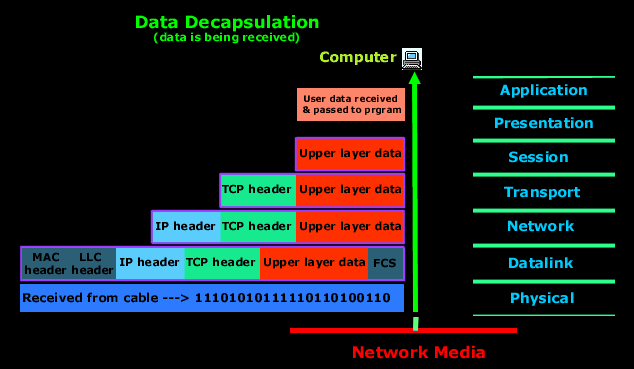
What is Encapsulation in OSI?


What is Encapsulation in OSI?

Encapsulation in the OSI (Open Systems Interconnection) model refers to the process of adding headers and trailers to data as it moves down through the layers of the OSI model on the sender's side. This process ensures that data is properly packaged for transmission across a network and can be correctly interpreted by the receiving device.

The OSI model consists of seven layers, each with specific responsibilities. Encapsulation occurs as data passes from higher layers (closer to the user) to lower layers (closer to the physical transmission medium). Each layer adds its own specific information, such as addressing or error-checking details, which are necessary for successful communication.


Step-by-Step Explanation of Encapsulation in OSI

1. Application Layer (Layer 7)

  • At this highest layer, raw user data is generated by applications like email clients, web browsers, or file transfer programs.
  • No additional headers or trailers are added at this stage in the OSI model; instead, this layer provides services like file transfers or email composition.
  • The data is passed down to the Presentation Layer.

2. Presentation Layer (Layer 6)

  • The Presentation Layer ensures that data is in a format understandable by both sender and receiver systems.
  • It may perform encryption, decryption, compression, or translation tasks.
  • Once formatted appropriately, the data is sent to the Session Layer.

3. Session Layer (Layer 5)

  • This layer establishes and manages sessions between devices for ongoing communication.
  • It adds session-related information to ensure proper synchronization and flow control during communication.
  • After this step, encapsulated session-layer data is passed down to the Transport Layer.

4. Transport Layer (Layer 4)

  • The Transport Layer breaks down large chunks of data into smaller segments for efficient transmission.
  • It adds a header containing critical information such as:
    • Source port number
    • Destination port number
    • Sequence numbers for reordering packets at the destination
    • Error-checking mechanisms
  • Depending on whether TCP (Transmission Control Protocol) or UDP (User Datagram Protocol) is used:
    • If TCP: The encapsulated unit is called a "Segment."
    • If UDP: The encapsulated unit is called a "Datagram."

The segment/datagram is then passed down to the Network Layer.

5. Network Layer (Layer 3)

  • The Network Layer handles logical addressing and routing of packets across networks.
  • A header containing source and destination IP addresses is added here.
  • After encapsulation at this layer:
    • The encapsulated unit becomes known as a "Packet."

The packet proceeds to the Data Link Layer.

6. Data Link Layer (Layer 2)

  • This layer prepares packets for delivery over physical media by adding both a header and a trailer:
    • Header: Contains source and destination MAC addresses for local delivery within a network segment.
    • Trailer: Includes error-checking information like CRC (Cyclic Redundancy Check).

After encapsulation at this stage:

  • The encapsulated unit becomes known as a "Frame."

The frame moves on to the Physical Layer.

7. Physical Layer (Layer 1)

  • At this lowest level of abstraction, frames are converted into electrical signals, light pulses, or radio waves depending on the medium used for transmission.
  • Encapsulation here involves converting frames into binary bits—0s and 1s—that represent electrical charges or other forms of signal encoding suitable for transmission over cables, fiber optics, or wireless mediums.

Key Characteristics of Encapsulation in OSI

  1. Protocol Data Units (PDUs): Each layer has its own name for its encapsulated data:

    • Application/Presentation/Session Layers: Data
    • Transport Layer: Segment/Datagram
    • Network Layer: Packet
    • Data Link Layer: Frame
    • Physical Layer: Bits
  2. Headers and Trailers: Headers are added at every layer except at Layers 7–5 in most implementations. Trailers are typically added only at the Data Link layer for error detection purposes.

  1. Purpose: Encapsulation ensures that each layer performs its specific function while maintaining compatibility with other devices using standardized protocols like TCP/IP.
  1. Reverse Process – De-encapsulation: On reaching its destination, de-encapsulation occurs as data travels upward through each OSI layer on the receiving device. Headers/trailers are stripped off one by one until only raw user data remains.

Example of Encapsulation

Consider sending an email:

  1. At the Application layer: You compose your email message using an application like Outlook.
  2. At subsequent layers:
    • Transport adds port numbers via TCP/UDP headers.
    • Network adds IP addresses via an IP header.
    • Data Link adds MAC addresses via Ethernet headers/trailers.
    • Physical converts all these into binary signals transmitted over cables/wireless media.

When received by another computer:

  1. De-encapsulation begins at Physical and works upward until your email client displays your message intact.

Importance of Encapsulation

Encapsulation plays several critical roles in networking:

  1. Data Integrity: Ensures that transmitted data reaches its intended recipient without corruption through error-checking mechanisms like CRCs.
  2. Addressing: Adds logical (IP) and physical (MAC) addresses so devices know where to send/receive packets within local/global networks.
  3. Interoperability: Allows devices from different manufacturers adhering to standard protocols like TCP/IP or Ethernet to communicate seamlessly.[1] [2] [3]


Authoritative Sources

  1. GeeksforGeeks article on how encapsulation works [GeeksforGeeks]
  2. TechTarget introduction to encapsulation [TechTarget]
  3. Study CCNA explanation on encapsulation [Study CCNA]
     

Thursday, April 25, 2024

Firewall

 A firewall is a physical device or software program that examines data packets on a network to determine whether to either forward them to their destination or block them. A firewall can be a one-way firewall, which protects against inbound threats only, or a two-way firewall, which protects against both unauthorized inbound and outbound traffic. Most third-party firewall programs, such as ZoneAlarm, are two-way firewalls. A software firewall can be configured to permit traffic between specified IP addresses and to block traffic to and from the Internet except when permitted on a per-program basis.


A corporate network can use a proxy server with a firewall as the sole direct connection between the Internet and the corporate network and then use a firewall in the proxy server to protect the corporate network against threats.


Physical firewalls are specialized computers whose software is designed to quickly analyze network traffic and make forwarding decisions based on rules set by the administrator. Over time, that task has been incorporated more into software on the computers and into the OS design. An example is Windows Defender Firewall in Windows, which is discussed in the section, “Microsoft Windows OS Security Settings.”

Tuesday, February 20, 2024

Some protocol port number you should know in Comptia A+

 Port numbers can be challenging to memorize, so you may want to consider making your own lab by adding some firewall rules in Windows Firewall or any third-party firewall front-end. Once you create firewall rules and work with some of the port numbers, you'll find they're much easier to remember.